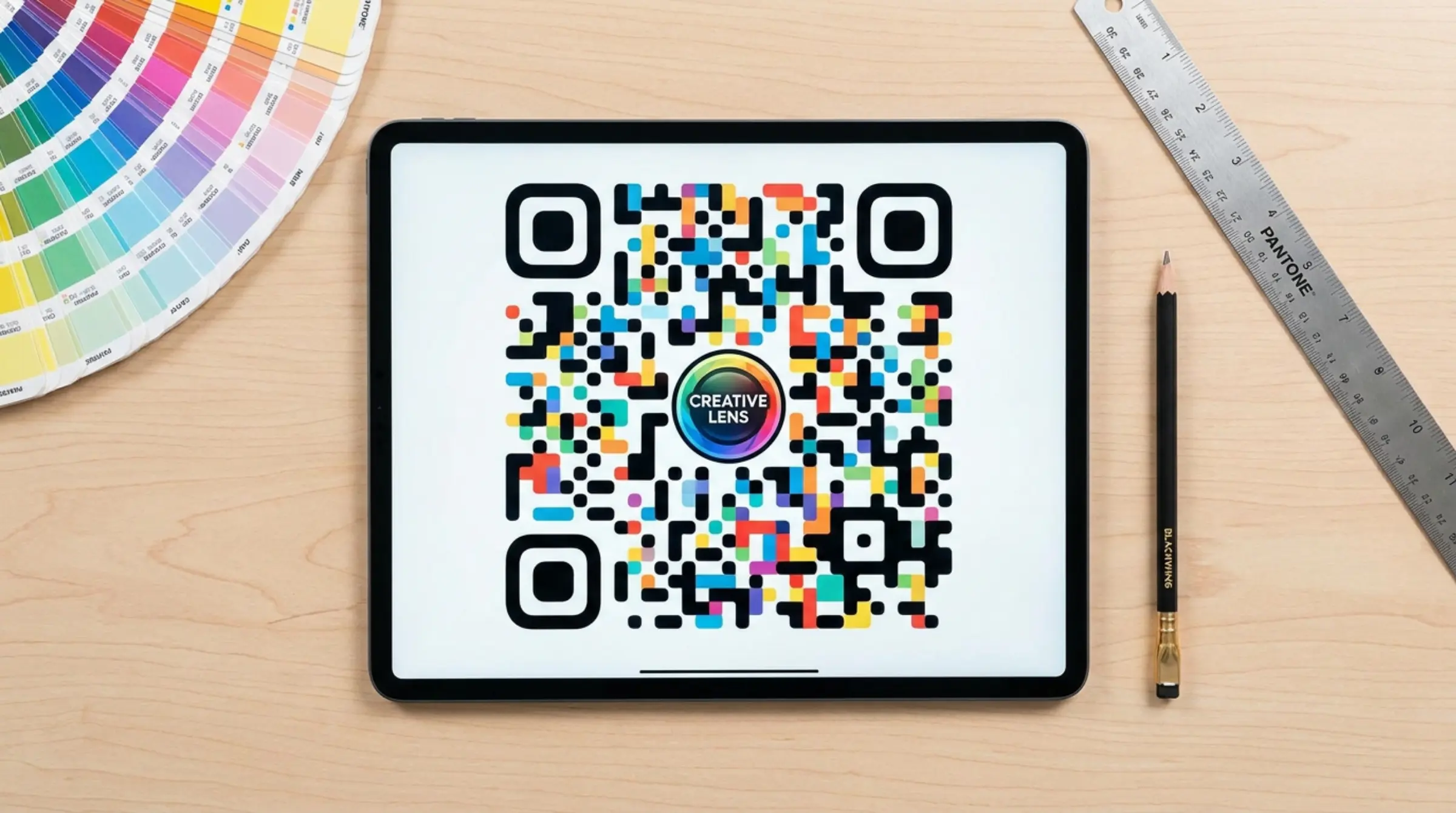
Customizing your QR code makes it stand out and reinforces your brand. But design choices affect scannability. Our qr code free generator gives you full control — here's how to use it effectively.
The Golden Rule: Contrast is King
Every qr code scanner needs clear distinction between dark modules and light background. This is non-negotiable.
- Dark on light: Best reliability (black modules, white background)
- Light on dark: Works but test thoroughly (white modules, dark background)
- Never: Similar luminance colors, gradients as backgrounds, busy patterns
Our qr code generator free includes a built-in contrast warning — heed it.
Color Best Practices
Single Color (Safest)
- Choose one dark color for modules: navy, dark green, charcoal, deep burgundy
- Keep background white or very pale version of your brand color
- Test with multiple scanning apps before committing
Gradients (Advanced)
- Linear gradients: Modules transition from one color to another
- Radial gradients: Circular color transition from center
- Ensure BOTH gradient endpoints are dark enough
- Test at multiple angles — gradients can create scanning blind spots
Custom Eye Colors
- Eye frames and balls can have separate colors
- Keep eyes darker than body modules for orientation detection
- Match eye colors to brand palette, body to complementary shade
Shape Customization
Body Shapes (Data Modules)
- Square (default): Maximum data density, best scanning
- Rounded: Softer look, slight density reduction
- Dots/Circles: Distinctive, but reduce error correction capacity
- Stars/Hearts: Fun for marketing — test extensively
Eye Shapes (Finder Patterns)
- Frame shape: Square, rounded, circular, leaf, shield
- Ball shape: Square, circle, diamond, dot
- Custom eyes = distinctive branding but test on older scanners
Logo Integration
- Max 15-20% of code area for reliable scanning
- Use qr code generator with auto background removal
- Always enable error correction Level H (30%) when adding logos
- Test logo placement: center only — never corners or edges
Quiet Zone (The Invisible Margin)
The white border around the code is not optional — it's part of the spec. Our qr code free generator enforces it automatically. Never place text, graphics, or colored backgrounds in the quiet zone.
Design Workflow for Reliable Codes
- Start with content (URL, vCard, etc.)
- Set error correction to Level H
- Choose colors — test contrast warning
- Select shapes — preview at actual size
- Add logo — verify auto-removal worked
- Download SVG for design work, PNG for quick sharing
- Test physically: Print at final size, scan with 3+ devices
- Adjust and regenerate if any scan fails
Common Mistakes to Avoid
| Mistake | Why It Fails | Fix |
|---|---|---|
| Light color on light background | Insufficient contrast for scanner | Use dark modules, light background |
| Logo too large | Covers too much data, exceeds error correction | Reduce logo to <15% area, use Level H |
| Patterned/photo background | Scanner can't distinguish modules | Solid background only |
| No quiet zone | Scanner can't find code boundaries | Keep 4-module margin (auto-enforced by GenQR AI) |
| Inverted colors without testing | Some scanners don't support light-on-dark | Test on iOS, Android, dedicated apps |
Branding Without Breaking
Successful branded QR codes share these traits:
- Brand color used for modules (dark variant)
- White/neutral background
- Logo centered, auto-background-removed
- Rounded modules for friendlier feel
- Custom eyes matching brand geometry
- SVG format for crisp reproduction
Design Free, Scan Reliable
GenQR AI lets you experiment freely with live preview. Create qr code free with full design control, contrast warnings, and professional output formats. No account, no limits, your data stays on your device.